Where the Sound in Your Video Comes From: Three Routes, One Decision
Native audio generated with the picture, music made separately, or narration written line by line. How to decide which your video needs on Gendia, and what each costs.
There are three completely different ways to get sound into a video here, and picking the wrong one is why people end up with a clip whose audio can't be fixed.
The question that decides it: does this sound belong to the shot, or does it sit over the shot?
Route 1: Native audio, generated with the picture
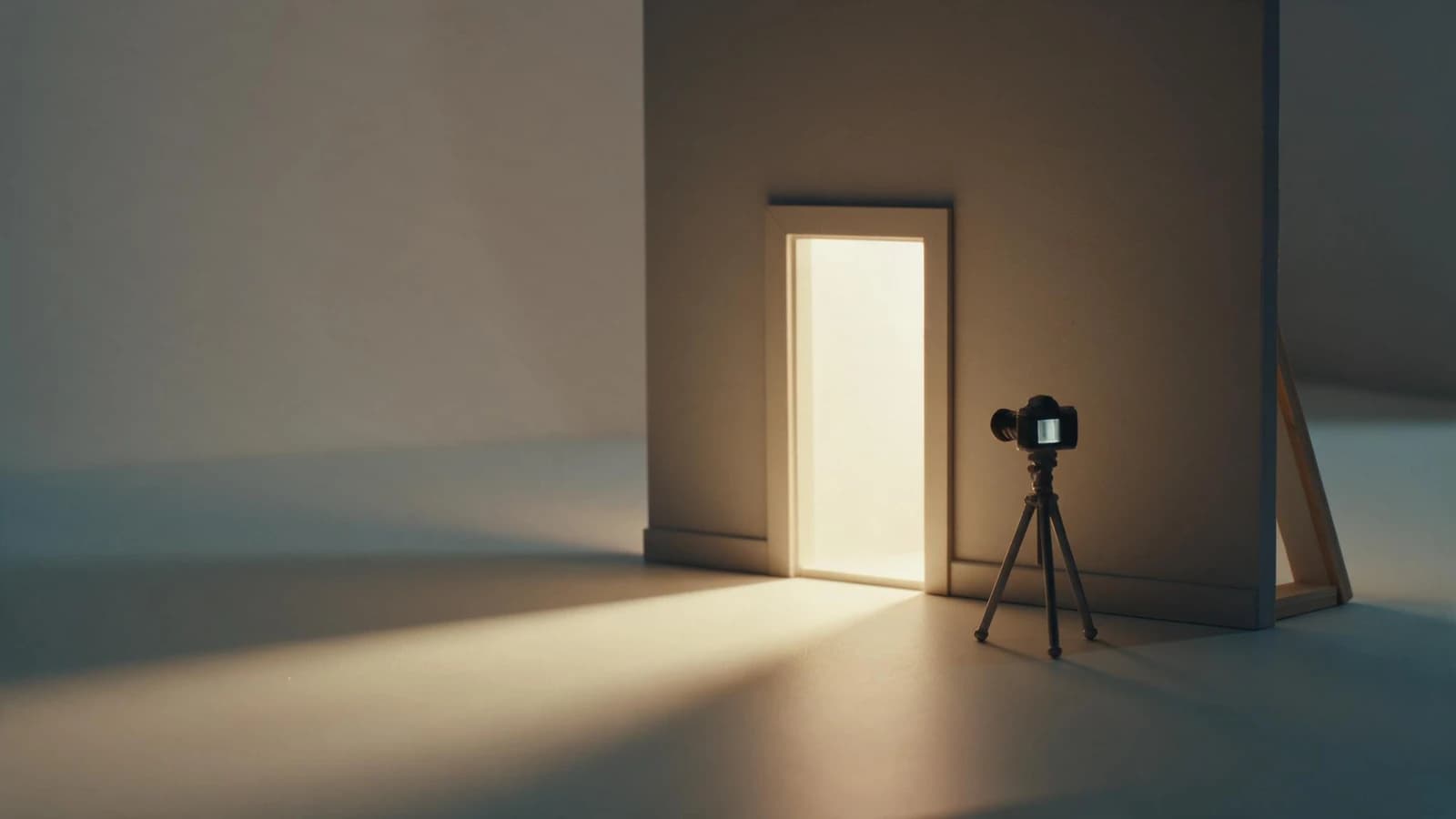
Some video models produce sound as part of the generation rather than after it. On Seedance 2.5 it's on by default.
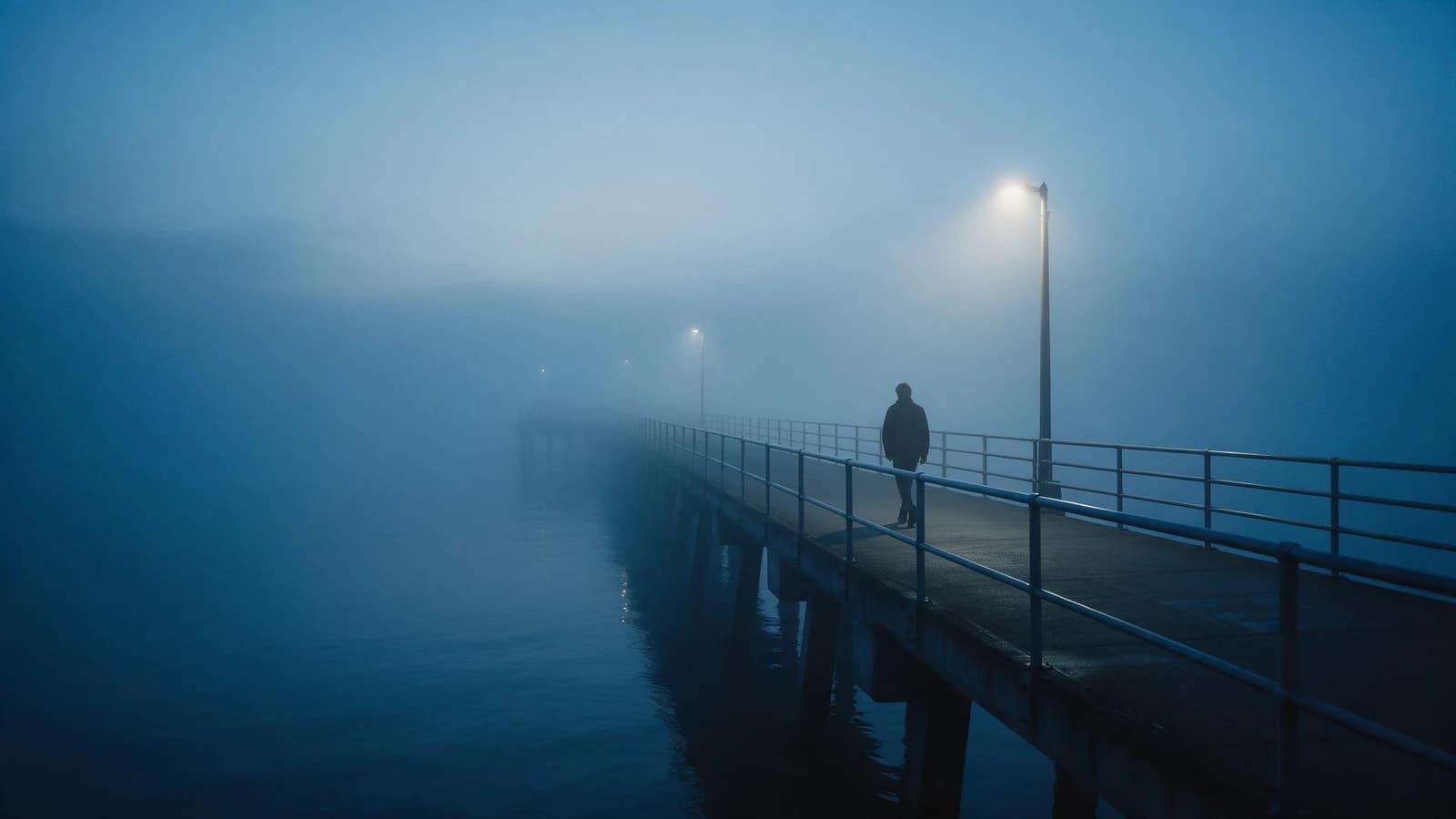
Because it's generated together with the picture, it's synchronised with the action in a way nothing added later can be. Footsteps land on footfalls. Rain matches the rain you can see.
Use it for: ambience, room tone, the physical sound of what's happening on screen.
How: describe it in the video prompt, alongside what you want to see.
The catch: it comes with the clip. Don't like it, and your options are regenerate the whole clip, at video prices, or mute it and add sound another way. So say what you want the first time, including what you don't want. "No music" is a useful clause, because models will otherwise sometimes score your shot for you.
Route 2: Music, generated separately
Music is not part of any shot. It runs underneath the whole piece, so it should be made separately and laid on its own track.
The music generator gives you two tracks per run at 40–60 credits, up to eight minutes on the newer versions, and can extend a track to the exact length your edit turned out to be.
The order matters. Cut the video first, then generate music to fit it. Generating music first and cutting to match is a much harder job, and it's the reason so many AI videos feel like they're chasing their soundtrack.
If there's narration, say so in the music prompt, "background music for a product video, should not pull focus, instrumental, no vocals." Music written to be listened to will fight a voice every time.
Route 3: Narration, line by line
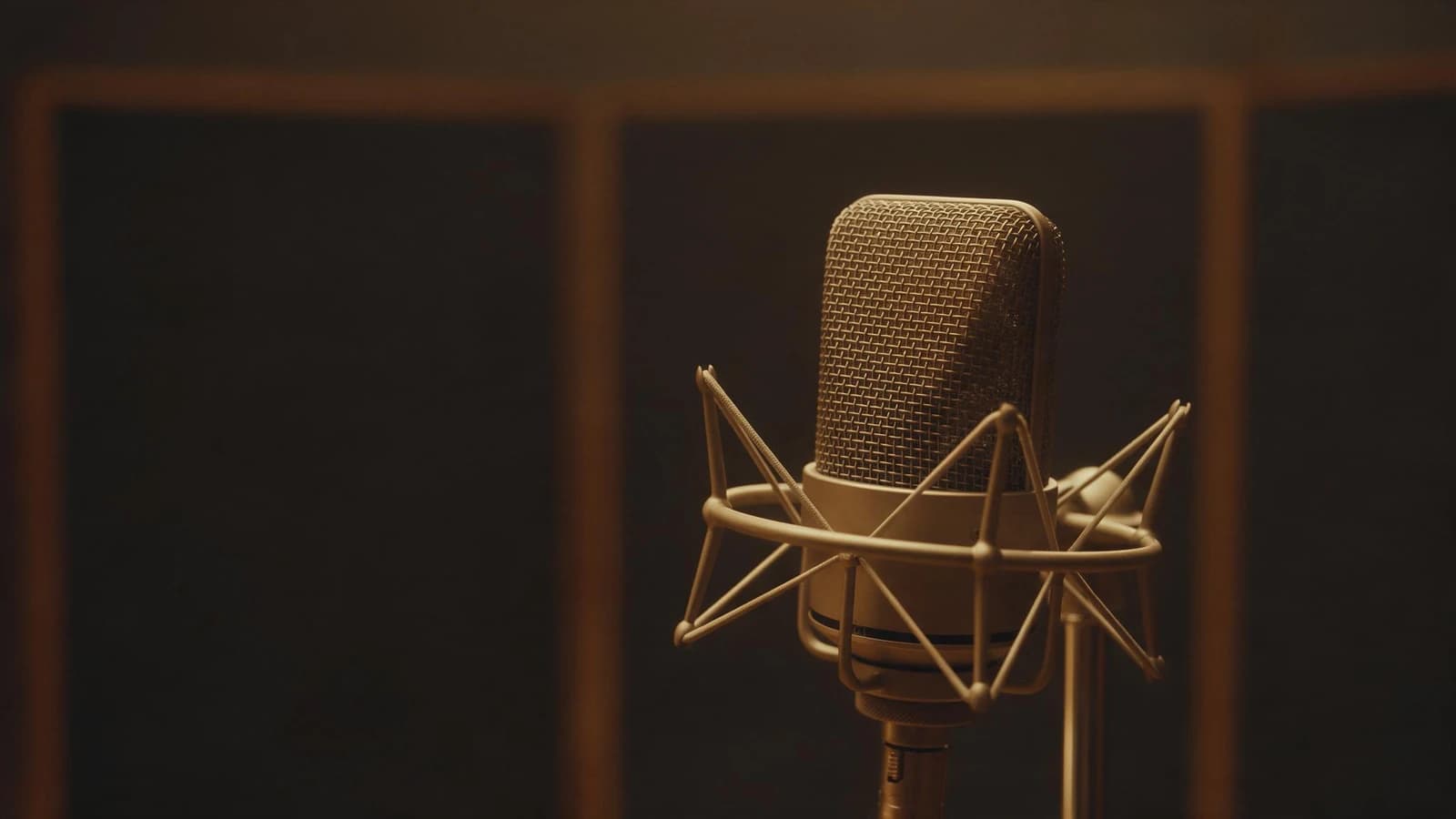
Text to speech takes 300 characters per request, which sounds restrictive until you realise it's the right unit: one line, generated on its own, re-doable on its own.
Roughly one credit per second of finished audio, which makes narration by far the cheapest element in any video you'll make here.
Generate each line separately, drop them on the narration track, and space them to the picture. A line that reads badly costs you that line again: not the whole script.
How they stack
The timeline editor keeps them apart on purpose:
| Track | What lives there | Where it came from |
|---|---|---|
| Video | Clips, and any native audio baked into them | The video generator |
| Music | One bed under the whole piece | The music generator |
| Narration | Individual spoken lines | Text to speech |
Separate tracks mean separate volumes and separate timing. Reordering clips doesn't move the music. Re-recording one line doesn't disturb the others.
Deciding, quickly
- Sound that something on screen is making → native audio, in the video prompt
- A bed under the whole thing → music generator, after the edit is cut
- Someone explaining or selling → text to speech, line by line
- Silence → a legitimate choice, and the right one more often than people think. A product clip with clean ambience and no music is frequently stronger than one scored to the hilt.
The mistake to avoid
Generating an expensive video with native audio you haven't specified, discovering the model added music, and then trying to put your own soundtrack over the top of it.
You can't remove it: it's in the clip. Either say "no music" in the video prompt, or plan to mute the clip entirely and build the sound yourself. Decide which before you spend the credits, not after.
Try it
Take a clip you've already generated, make a short instrumental that matches its mood, and put the two together in the timeline editor. Forty credits and one 5-credit export, and you'll have a much clearer sense of which of the three routes your work actually needs.
Then: music generation · text to speech · the video generator
- #AIVideoWithSound
- #AddMusicToAIVideo
- #AIVideoAudio
- #NativeAudioAIVideo
- #VoiceoverForVideo
- #AIVideoSoundtrack
- #VideoAudioWorkflow
- #AIVideoEditing
- #GendiaTutorial
- #Gendia