I Put Any Outfit on Any Model, Then Made It Spin. No Photographer, No Studio, No Model.
How I turned two photos: one model, one outfit, into a full editorial fashion lookbook with a slow spinning video, using AI in minutes. The exact models, prompts, and settings I used, copy-paste ready.
Let me show you something that still feels a little unfair.
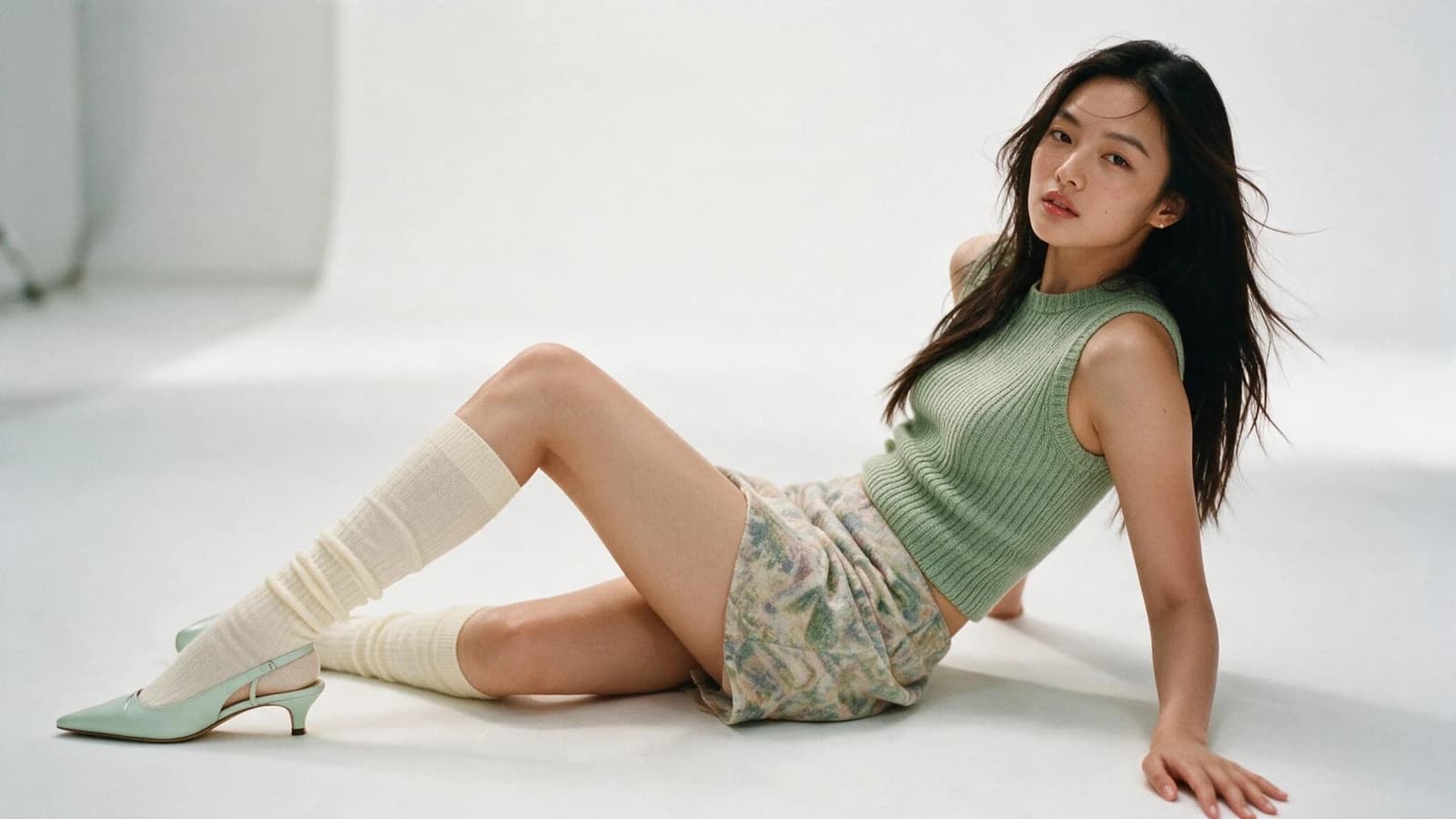
This is a full high-fashion lookbook: a clean, editorial, muted-tone photoshoot with the model slowly spinning on a seamless white background. The kind of thing a brand normally books a studio, a photographer, a stylist, and a model for.
I made it from two photos: one picture of a model, and one picture of an outfit. That's it. The model gets "dressed" in the outfit, and then the still turns into a smooth spinning video, all inside Gendia.
Here's exactly how it works, step by step. It's a two-part recipe. Let's get into it.
First: what is Gendia?
Quick context so the rest makes sense. Gendia is an all-in-one AI content platform. Instead of juggling five separate subscriptions, you get 20+ top AI models, Nano Banana 2, Seedance, Veo, Flux, and more, under one login, for images, video, music, and even 3D.
This project uses just two of them, in sequence:
- Nano Banana 2 (Google's Gemini 3.1 Flash image model), to dress the model in the outfit.
- Seedance 2.0 (ByteDance's video model), to turn that image into a spinning video.

Why make a lookbook this way?
Because a real fashion shoot is expensive and slow. Studio, photographer, model day-rate, stylist, hair, makeup, lighting, retouching, and if you want one more outfit, you book it all again.
With this workflow, one model photo plus one outfit photo becomes a finished, moving lookbook in minutes. Want the same model in a different outfit? Swap the outfit photo and regenerate. Want a different model? Swap the face. That flexibility is the whole point.
If you've ever searched "AI fashion photoshoot," "put clothes on an AI model," or "lookbook without a model," this is it.
Part 1. The base: turn 2 photos into a dressed model (Nano Banana 2)
This is the core move. Learn it once, then repeat it with any model and any outfit.
Step 1: Pick the model
Inside Gendia, open the image generator and select Nano Banana 2. It's fast, photoreal, and holds identity and outfit consistency, exactly what you need so the result looks like a real person in real clothes.
Step 2: Add your 2 reference images
Open Select Reference Image and choose just two:
- The model: a photo of the face/person you want.
- The outfit: a photo of the clothing you want them wearing.

Step 3: Write the prompt
Keep it tight and editorial. This is the exact prompt I used:
Every word earns its place: "photoreal" + "natural skin texture" kill the plastic AI look, "high fashion lookbook" + "muted neutral tones" set the editorial mood, and "no text, no watermark" keeps the frame clean for your own branding.
Step 4: Generate
Hit generate. In a few seconds, out comes the model wearing the chosen outfit: one clean, photoreal editorial shot.

That's the base. Two photos in, one dressed model out. Now let's repeat it.
Part 2. Build the set: same method, any model + any outfit
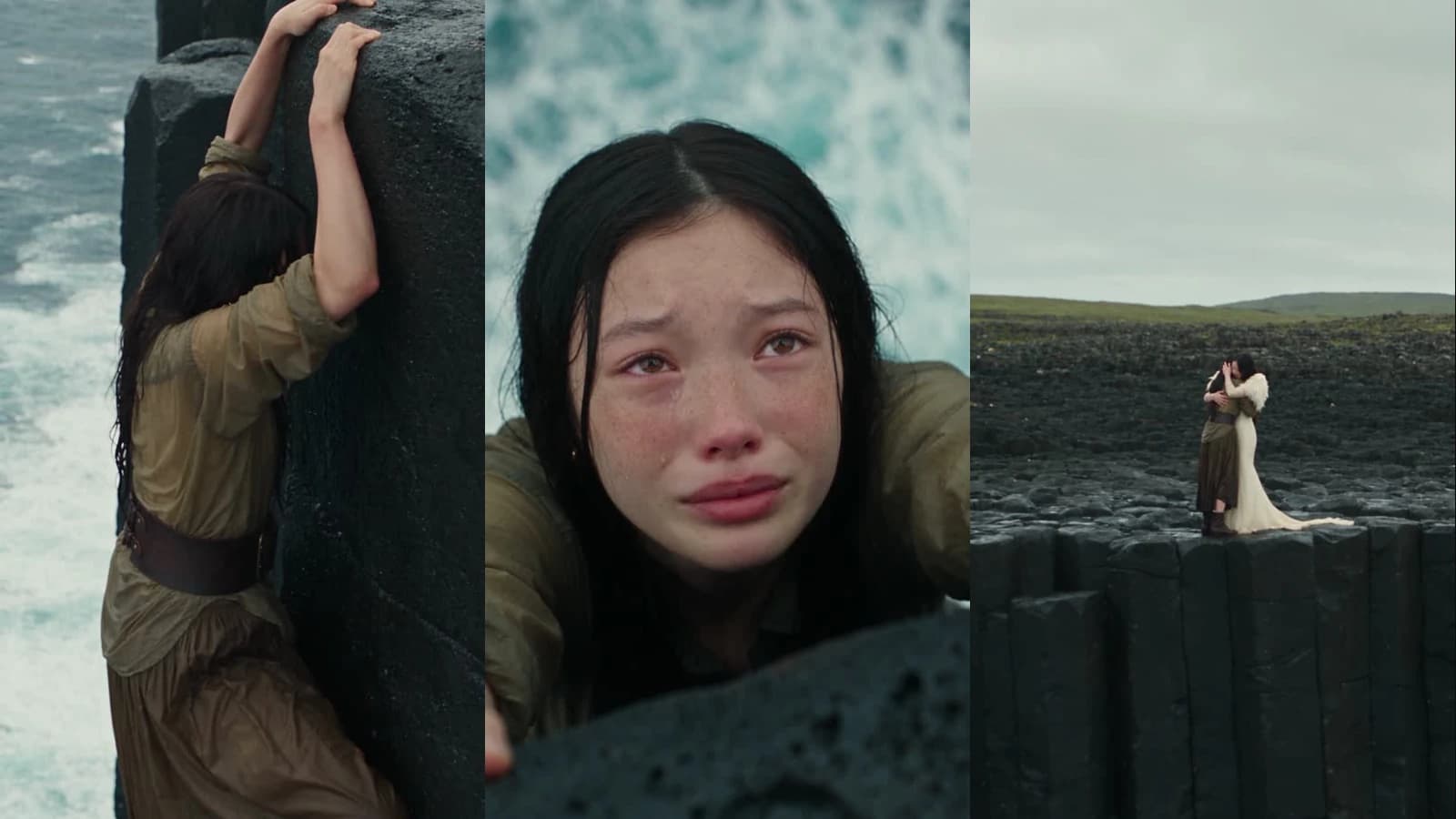
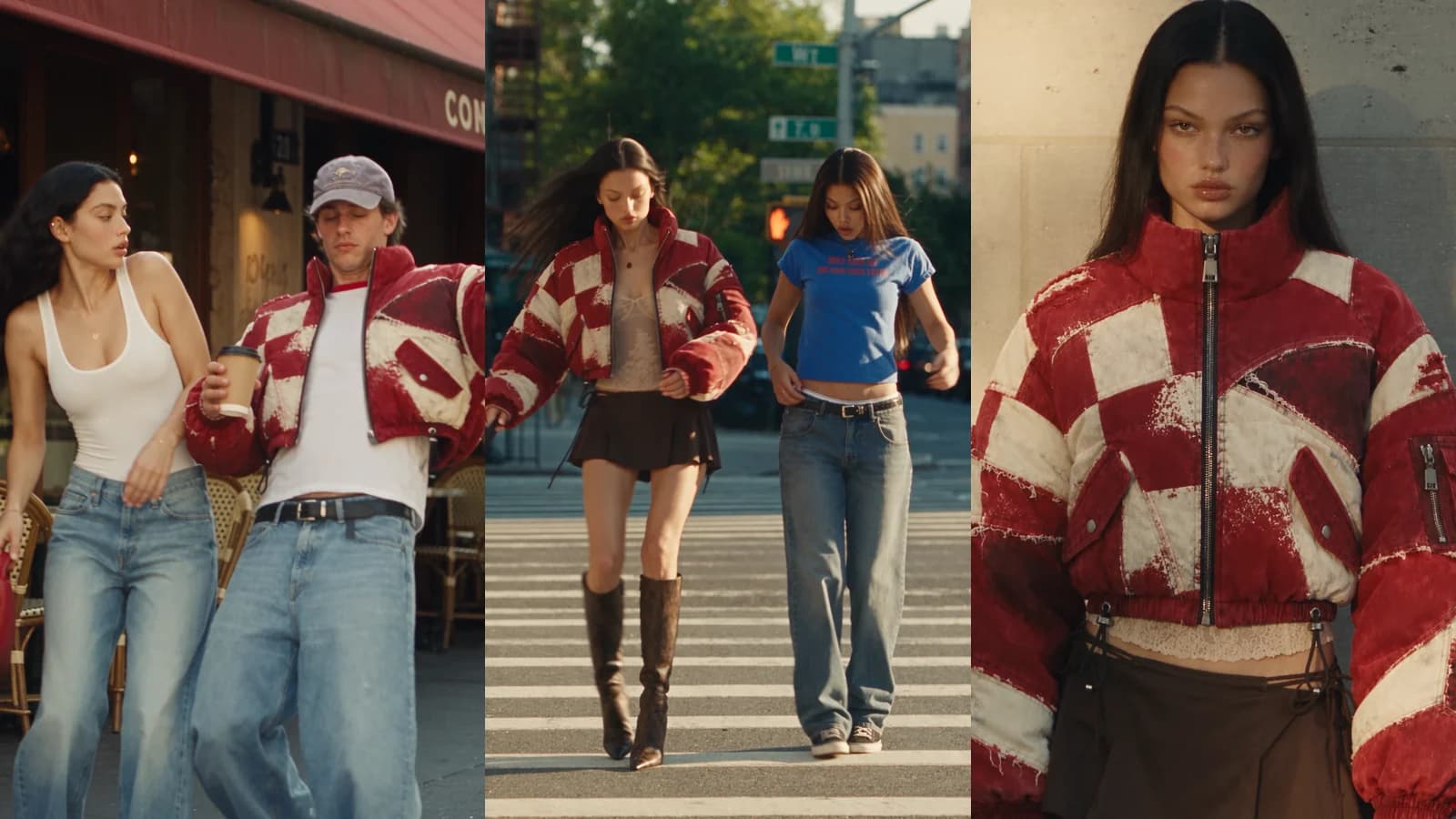
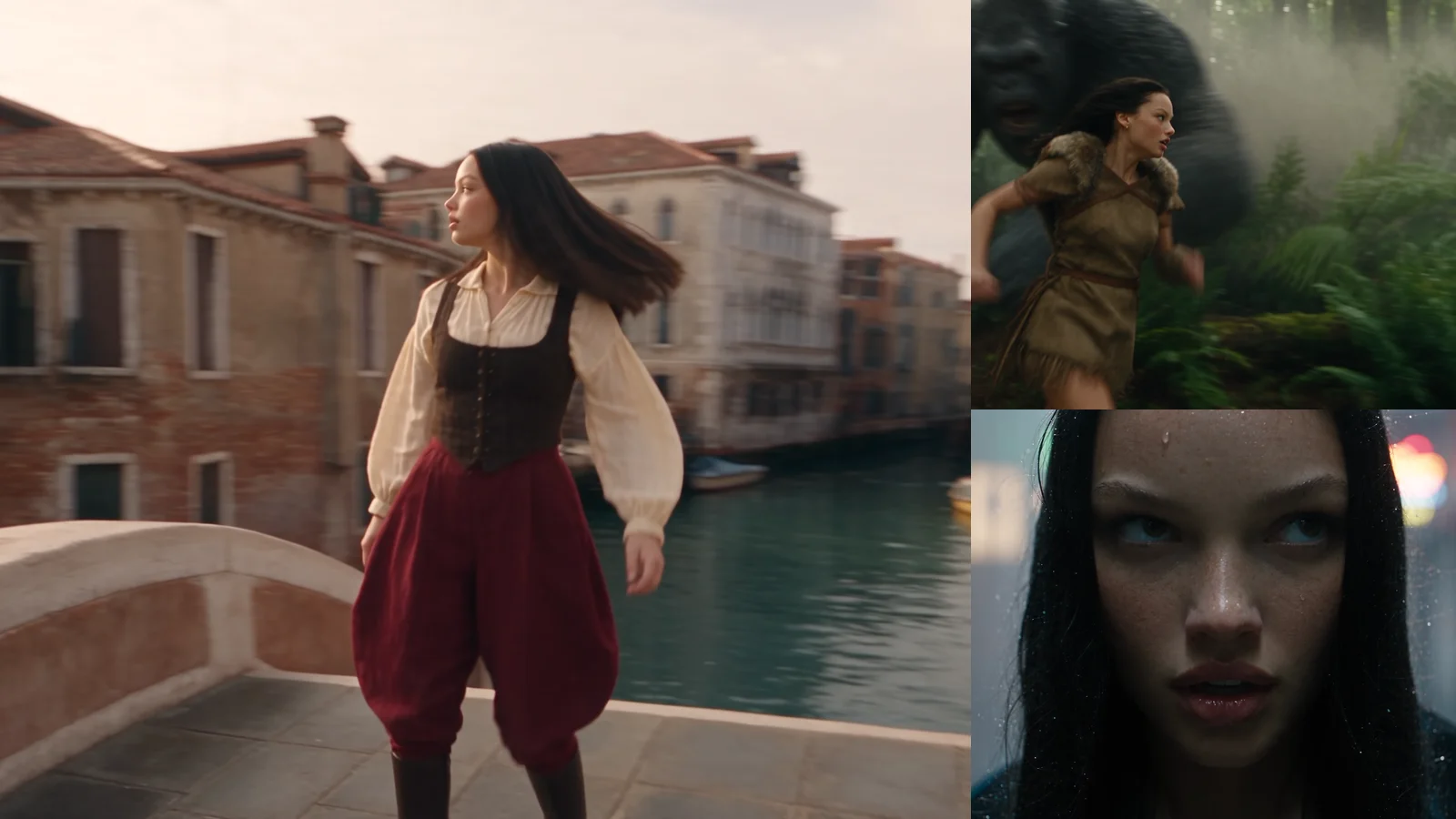
The magic is that this is endlessly repeatable. Swap the model photo, swap the outfit photo, keep the same prompt, and you build a whole collection. Here are a few examples, all made the exact same way, each from just a model photo plus an outfit photo:


Part 3. Make it move: the spinning video (Seedance 2.0)
A still is nice. A slow, cinematic orbit around the model is what makes it feel like a real campaign. For that, take your finished Nano Banana 2 image and feed it into Seedance 2.0 as the reference, with this prompt:
Why this prompt works so well: it locks identity, pose, and outfit to your reference so nothing warps, it forces a clean seamless-white background, and it describes one specific camera move: a slow left-to-right full-body orbit, instead of a vague "make it move." That precision is what separates a polished result from a melty one.
Do this for each dressed model and you've got a full set of spinning shots ready to cut together:
Tips for a better AI lookbook
- Use clean reference photos. A clear model face and a clear, well-lit outfit photo give the best, most on-brand results.
- Keep the model prompt editorial and specific, name the mood, tones, and finish ("photoreal, natural skin texture") to avoid the plastic look.
- Add "no text, no watermark" so you can drop in your own logo and typography later.
- Lock everything in the video prompt, identity, pose, outfit, background, and one clear camera move, so nothing warps when it animates.
- Build a series. One face across many outfits (or one outfit on many models) turns a single trick into a full campaign.
Try it yourself (free)
You can make your own moving lookbook exactly like this on Gendia, free credits to start, no credit card needed. Two photos, one prompt for the image, one prompt for the video. That's a full editorial photoshoot, from your laptop, in minutes.
If you sell clothing or accessories, or you're a creator who wants an editorial set without a studio budget, this changes what a small budget can do. Go dress your first model and make it spin.
Make your own AI lookbook on Gendia, free
Related reading
- I Made a Lip Tint Ad Video With Just One Product Photo, the same two-photo trick applied to a cosmetics commercial
- The 10 Best AI Image Generation Models in 2026, how to pick the right model for each task
- How Small and Medium Businesses Use Gendia: 10 Real Use Cases, more ways brands cut creative costs with AI
- #AIFashionLookbook
- #AIFashionPhotoshoot
- #PutClothesOnAIModel
- #VirtualModel
- #LookbookWithoutAModel
- #AIModelGenerator
- #NanoBanana2
- #Seedance2.0
- #ImageToVideo
- #Gendia
- #AI룩북
- #AI모델
- #패션화보
- #가상모델
- #AI패션
- #무료AI