How to Use Gendia Canvas Templates: One Photo → 6 Kinds of Finished Ads (Step by Step)
A full tutorial on the Templates tab in Gendia Canvas. No prompt-writing, pick a template, upload a product photo, fill in a few fields, and Canvas builds a finished TV commercial, runway try-on, UGC clip, or poster for you.
The best-kept secret in Gendia Canvas is the Templates tab. You don't write prompts: you pick a template, upload a product photo, fill in a few fields, and Canvas builds a finished ad for you.
There are six template categories, each for a different kind of content. One thing runs through all of them: wherever a template says "Add a model," you can either browse the Models catalogue or use your own photo, so you're never locked into stock faces. In this tutorial I'll show you how to use each category, step by step, straight from its Customize panel.
Before you start: find the right template
- Go to Canvas and open the Templates tab.
- Filter by industry to narrow things down: the tabs are All · Tech & Home Appliances · Fashion & Beauty · Food & Beverage · Other.
- Or use the search bar (e.g. "Product ad for sneakers").
- Each category has several template types to choose from (many marked BETA), open the dropdown at the top of a template to switch types.
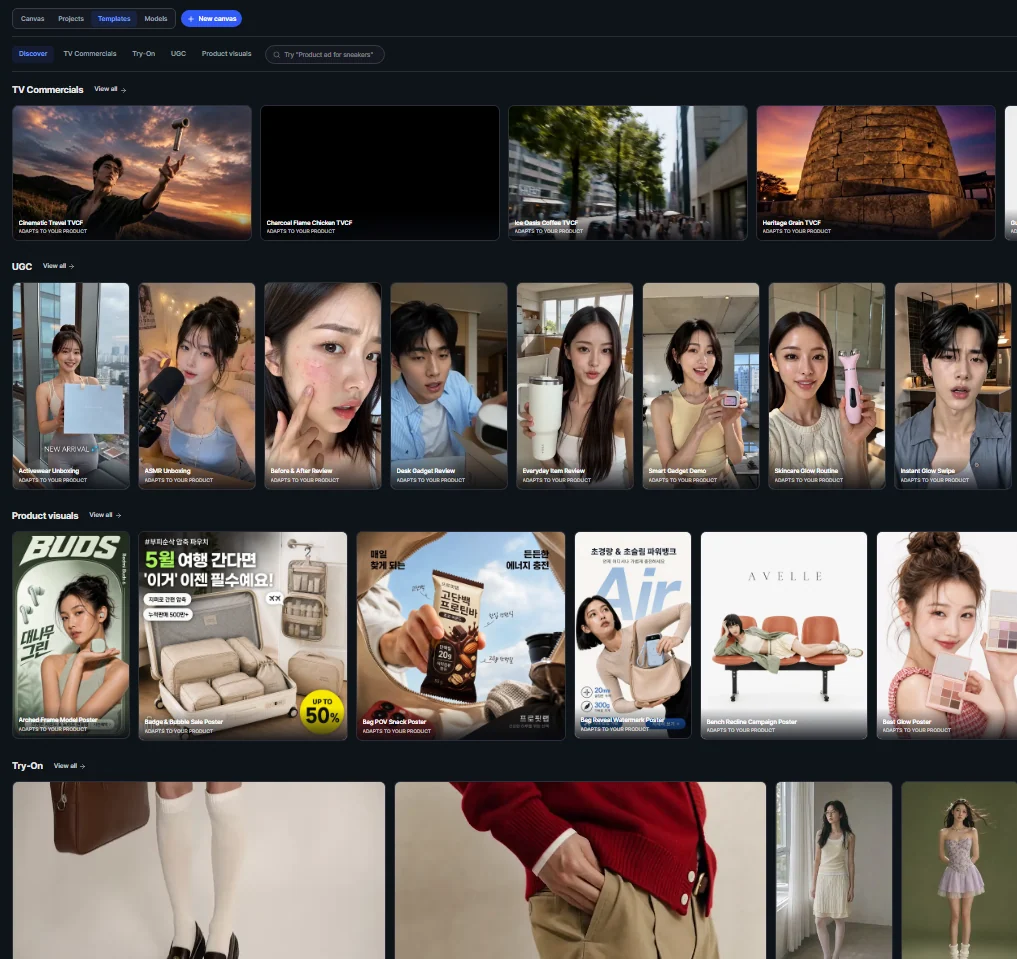
Once you've picked a template, you land on its Customize panel. Here's how each category works.
Template 1: TV Commercials (TVCF)
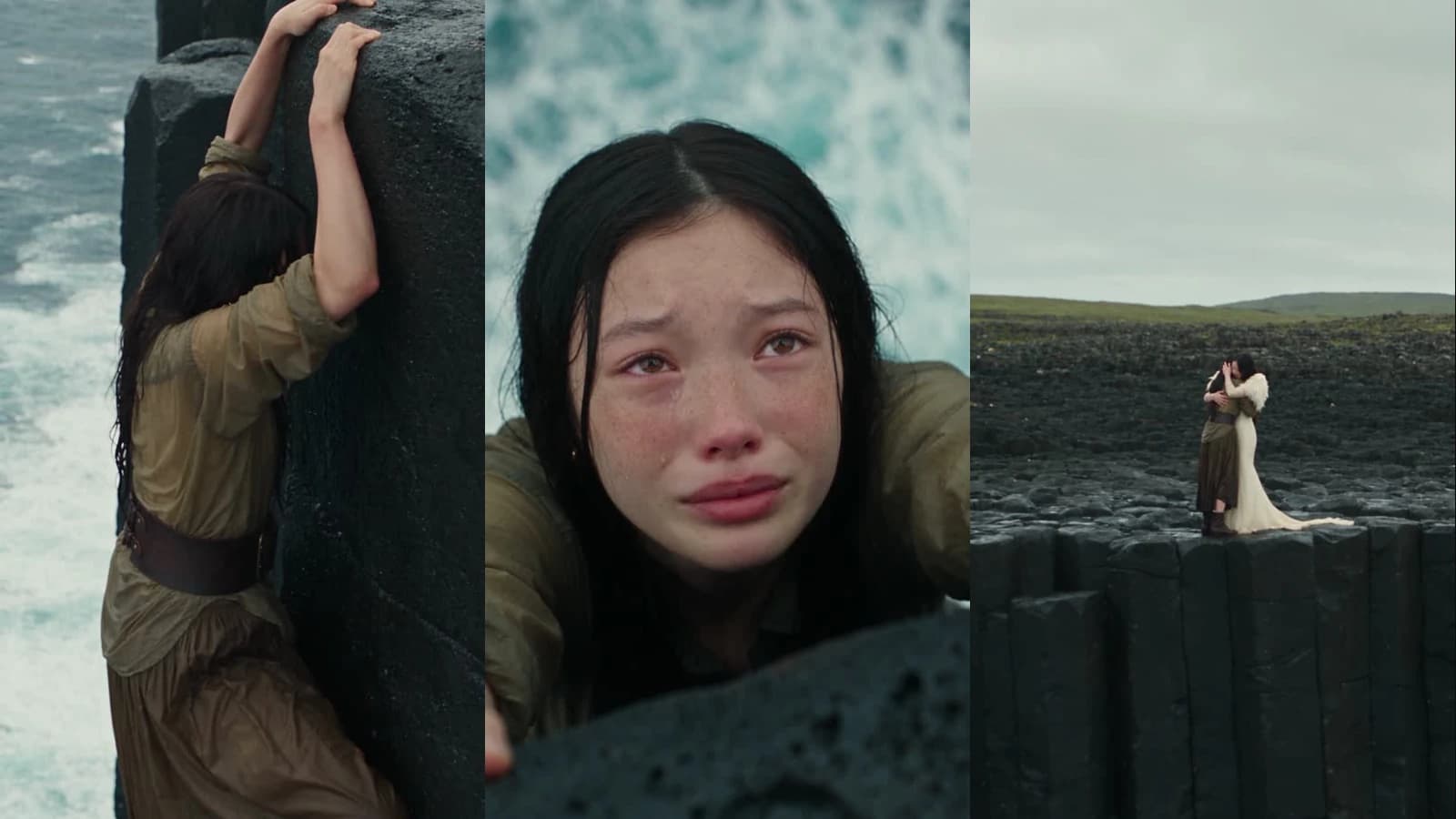
A polished, broadcast-style video ad. Types include cinematic and travel-style TVCFs (e.g. Cinematic Travel TVCF) and more in the dropdown.
How to use it:
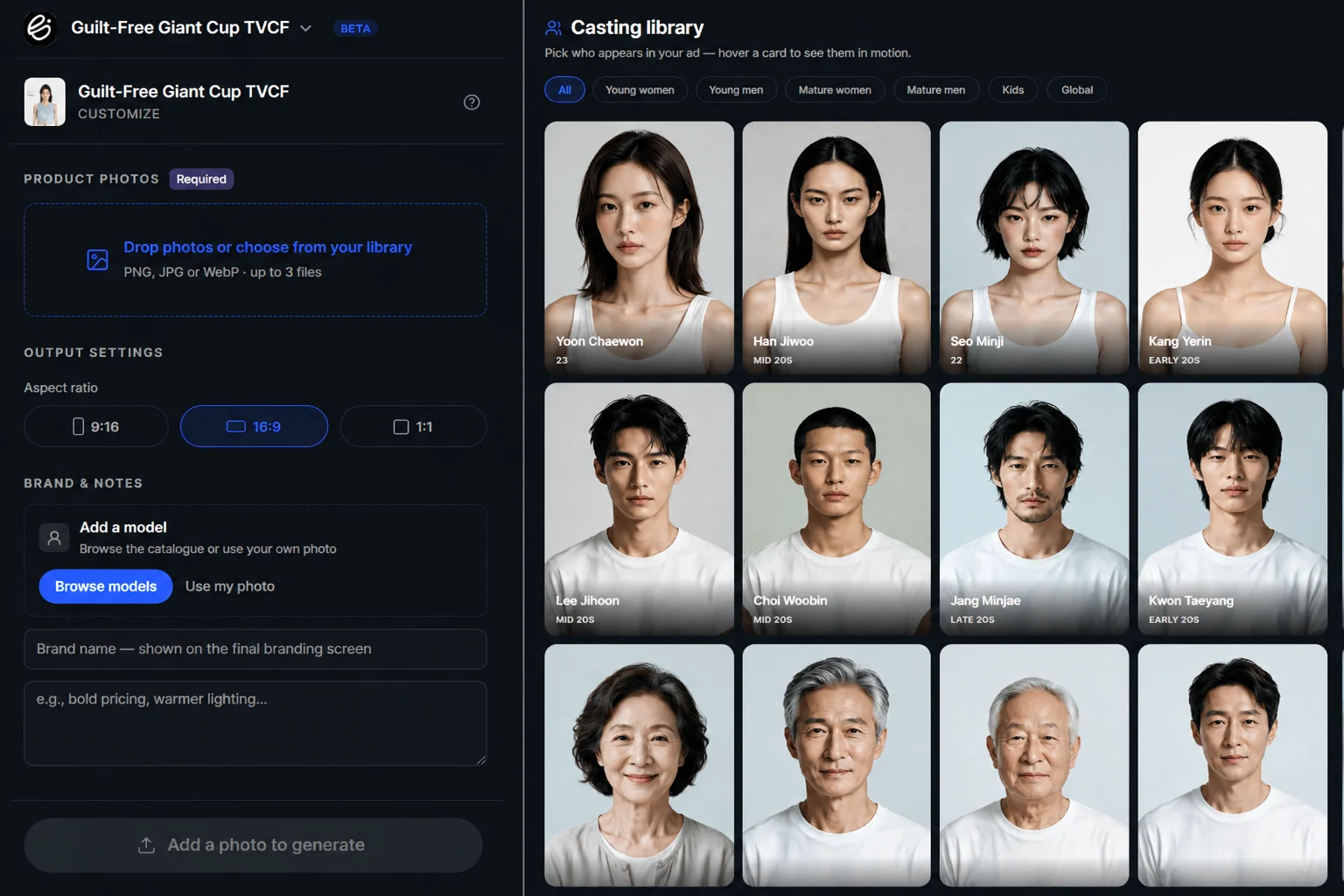
- Add product photos (required), drop or choose up to 3 files (PNG, JPG, or WebP).
- Choose an aspect ratio, 9:16, 16:9, or 1:1.
- Add a model, browse the catalogue, or upload your own photo.
- Enter your brand name: it appears on the final branding screen.
- Add notes (optional), e.g. "bold pricing, warmer lighting."
- Hit generate.
You'll get two scenes as images: the first frame and the last frame of your ad. If you like them, keep them and hit generate to turn them into video.
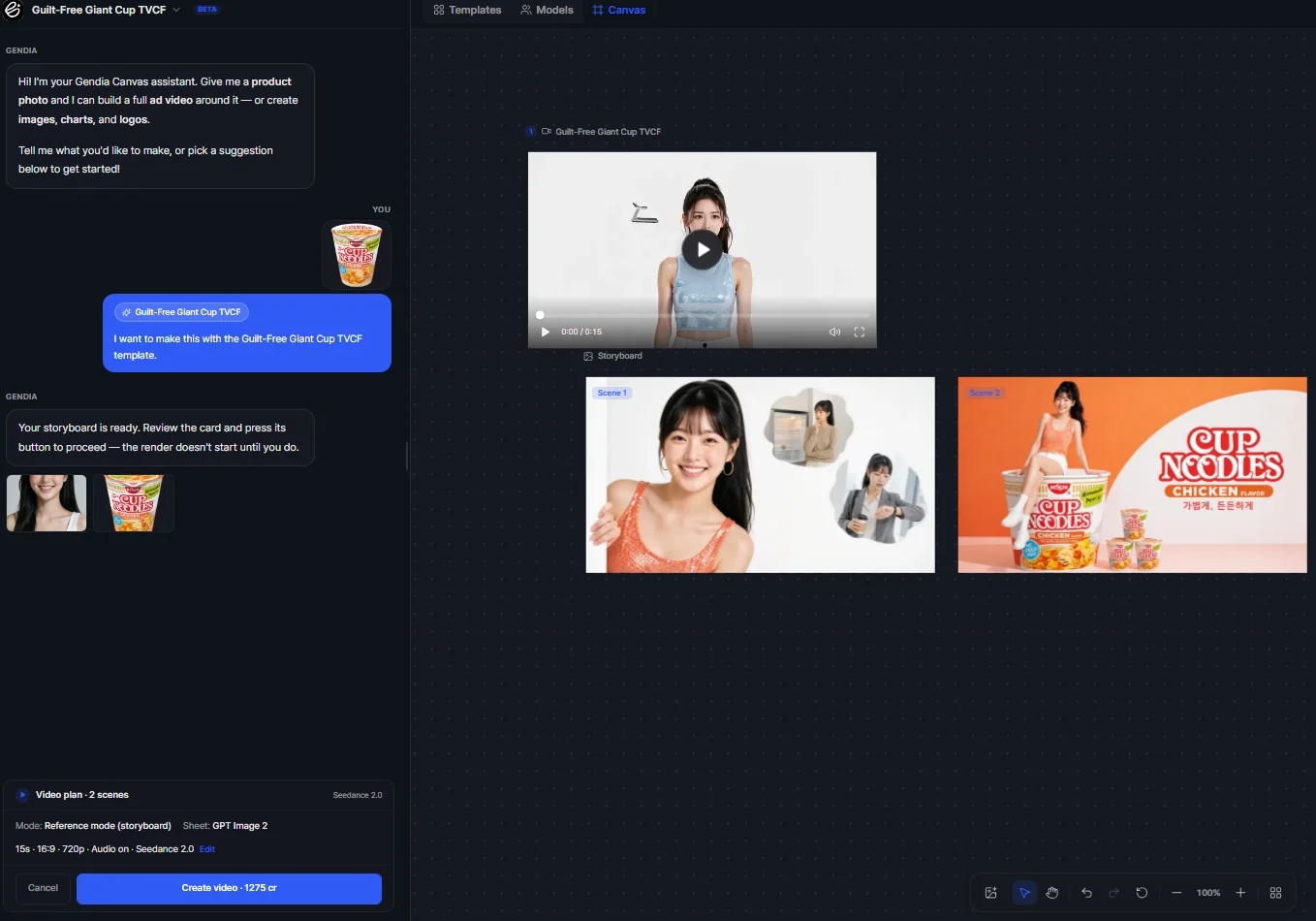
If you don't, you can tweak the prompt, or just type what you want to change straight into the canvas chat. Wait a few seconds and, tada, your TVCF ad is ready.
Template 2: Try-On (Runway)
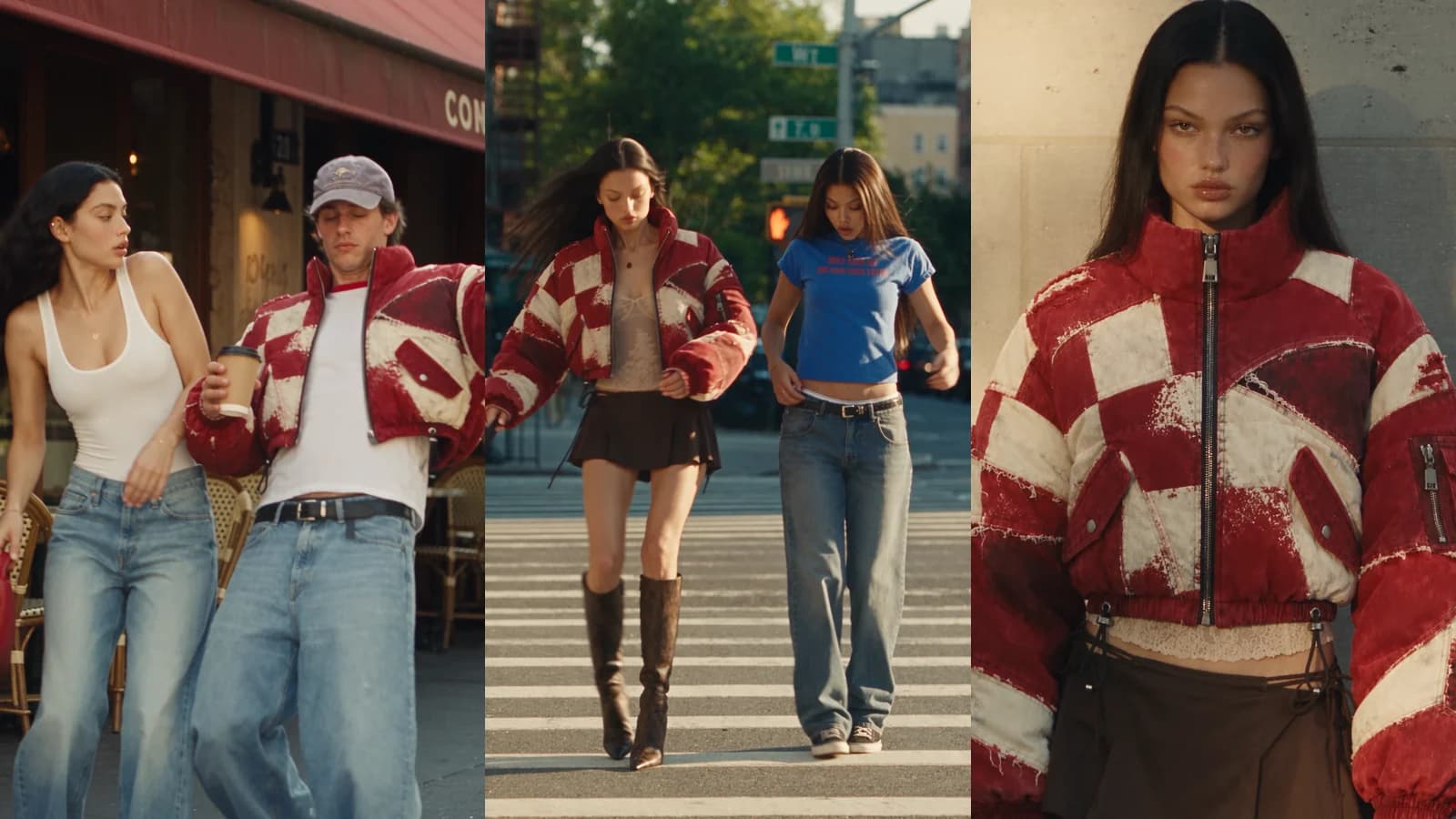
Put clothing on models: a runway-style showcase with no shoot. Types include multi-look runway templates (e.g. Four-Looks Runway TVCF (Women)).
How to use it:
- Add clothing photos (required), drop or choose up to 4 files (PNG, JPG, or WebP).
- Choose an aspect ratio, 9:16, 16:9, or 1:1.
- Add a model, browse the catalogue, or upload your own photo.
- Enter your brand name, shown on the final branding screen.
- Add notes (optional).
- Hit generate.
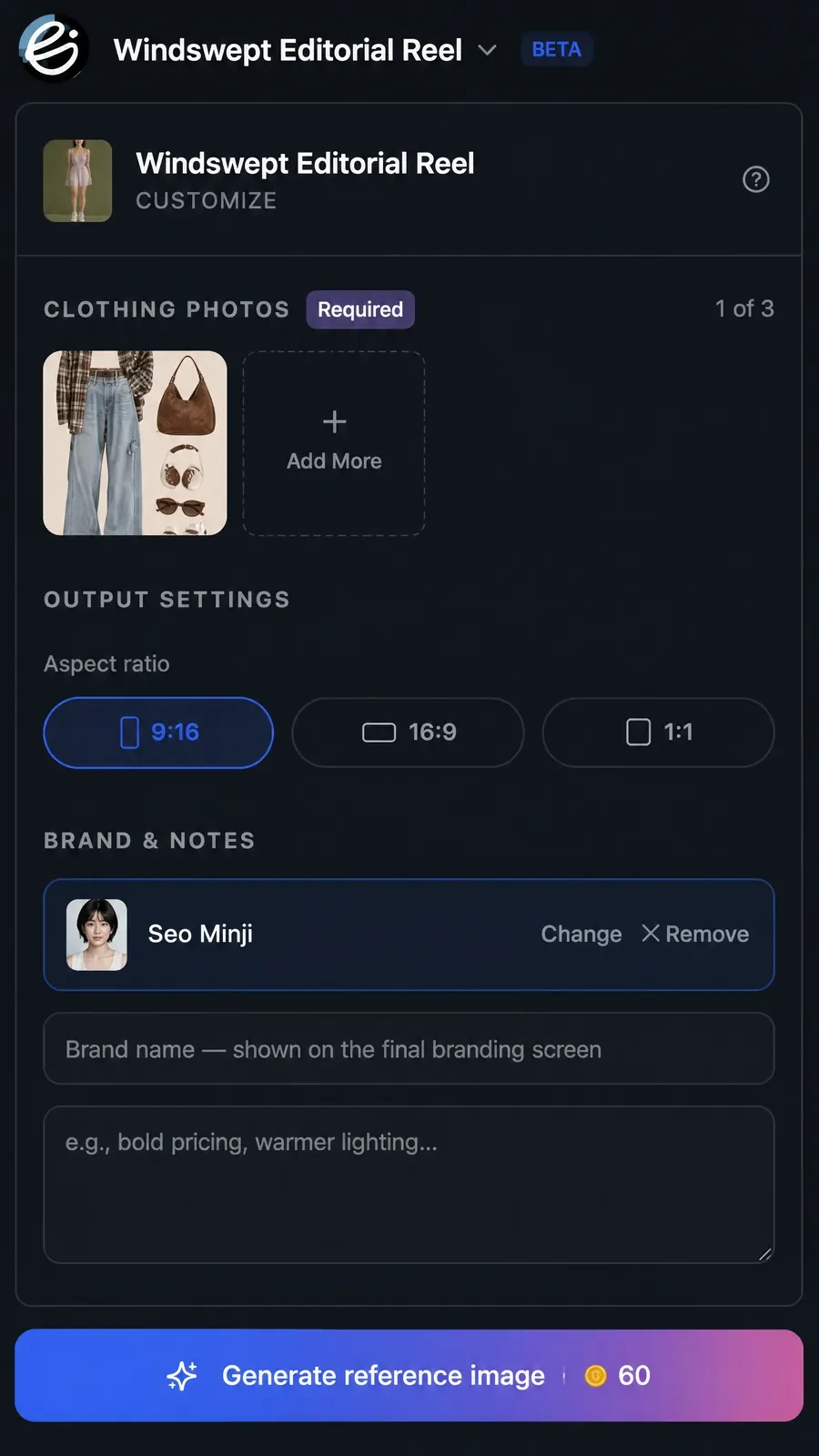
You'll get one image, your reference frame for the try-on. If you like it, you can keep it as is.
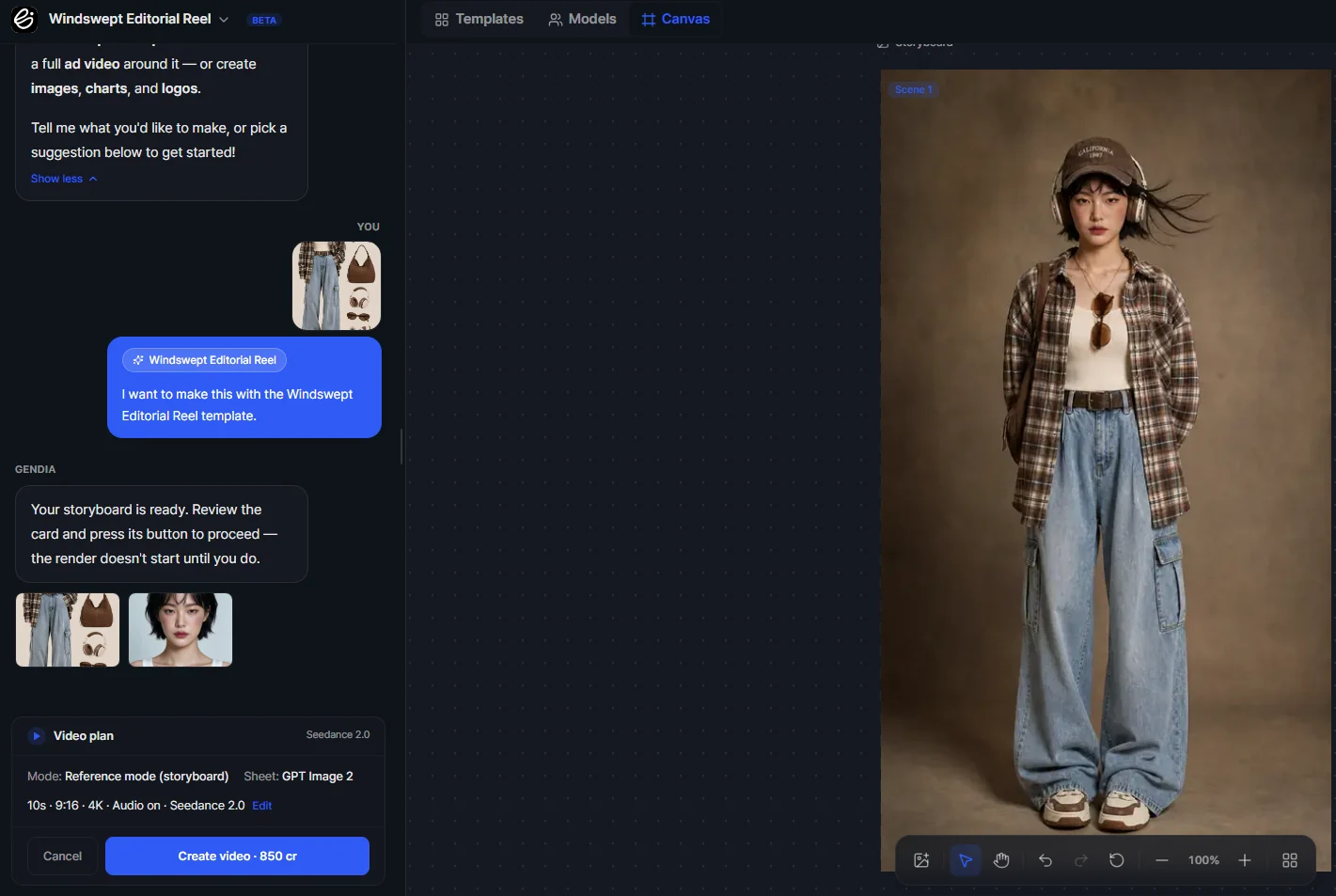
Or, if you want to take it further, proceed and turn it into a cool video like this one.
Template 3: UGC
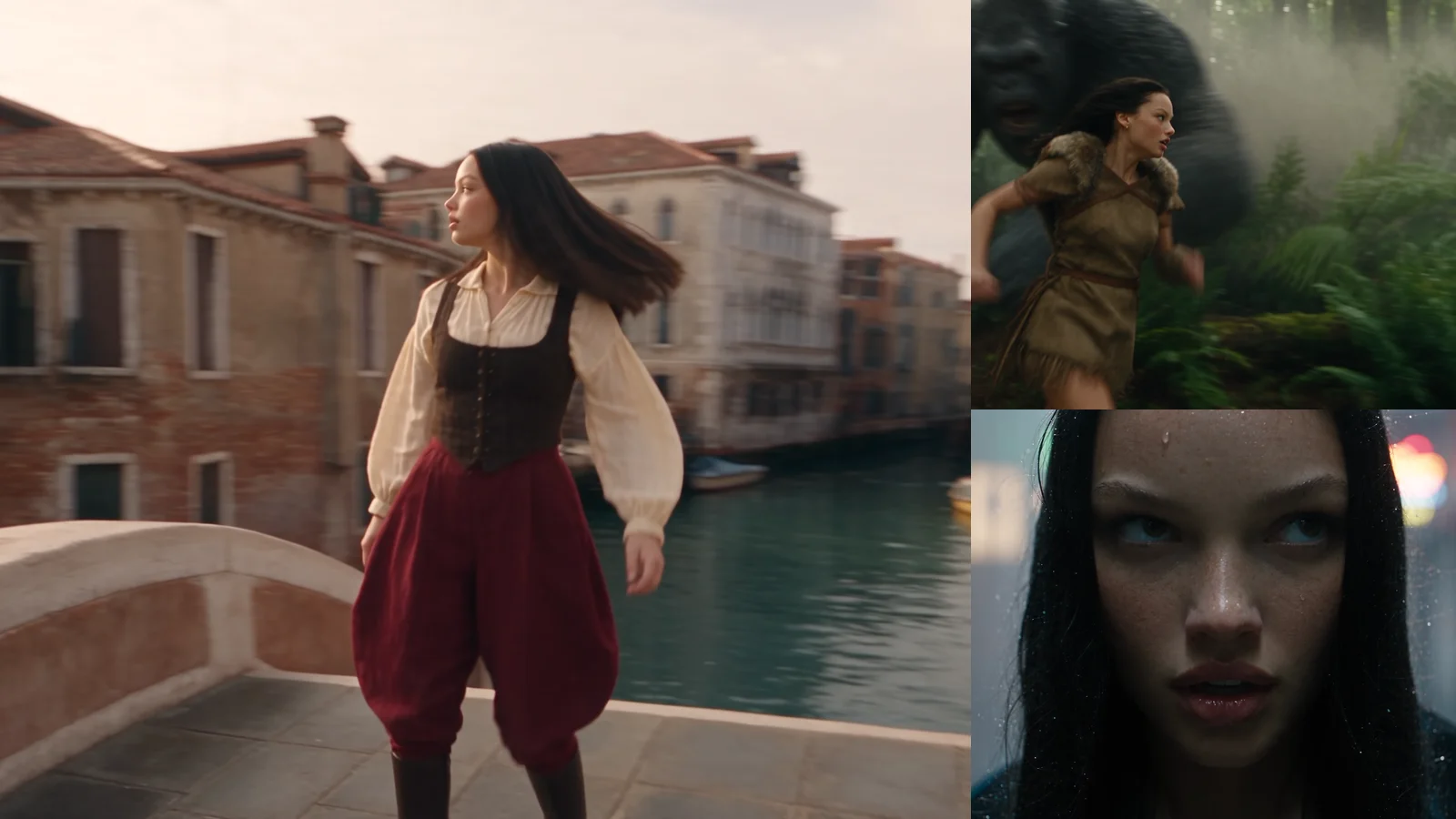
Authentic, creator-style content for social feeds: the "filmed on a phone" look. Types include unboxing-style templates (e.g. Activewear Unboxing).
How to use it:
- Add product photos (required), drop or choose up to 3 files (PNG, JPG, or WebP).
- Choose an aspect ratio, 9:16 is the default and best for Reels / Shorts / TikTok.
- Add a model, browse the catalogue or use your own photo.
- Add notes (optional), e.g. "bold pricing, warmer lighting."
- Hit generate.
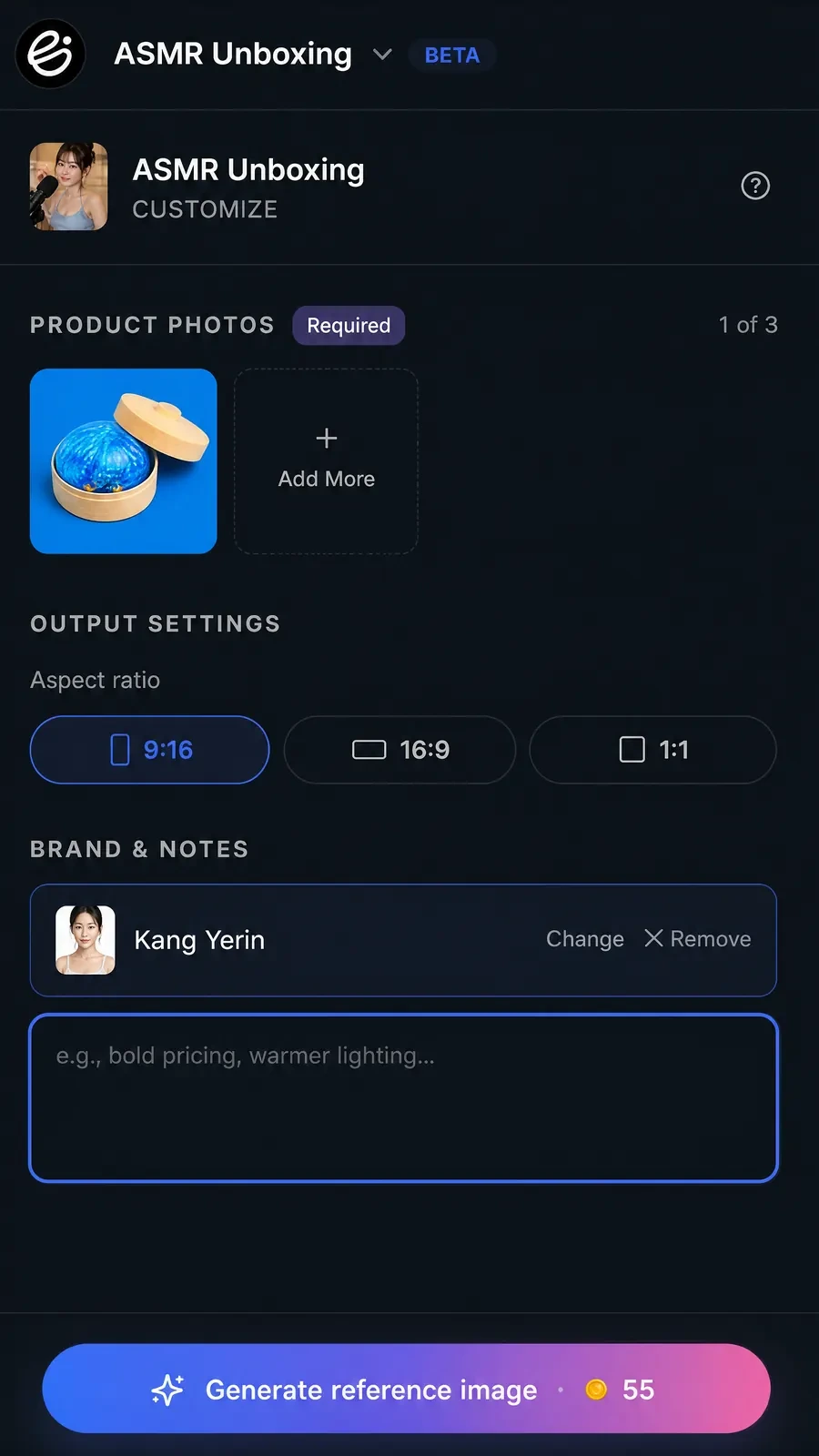
You'll get one image, your reference frame for the UGC. If you like it, you can keep it as is and click on "create video".
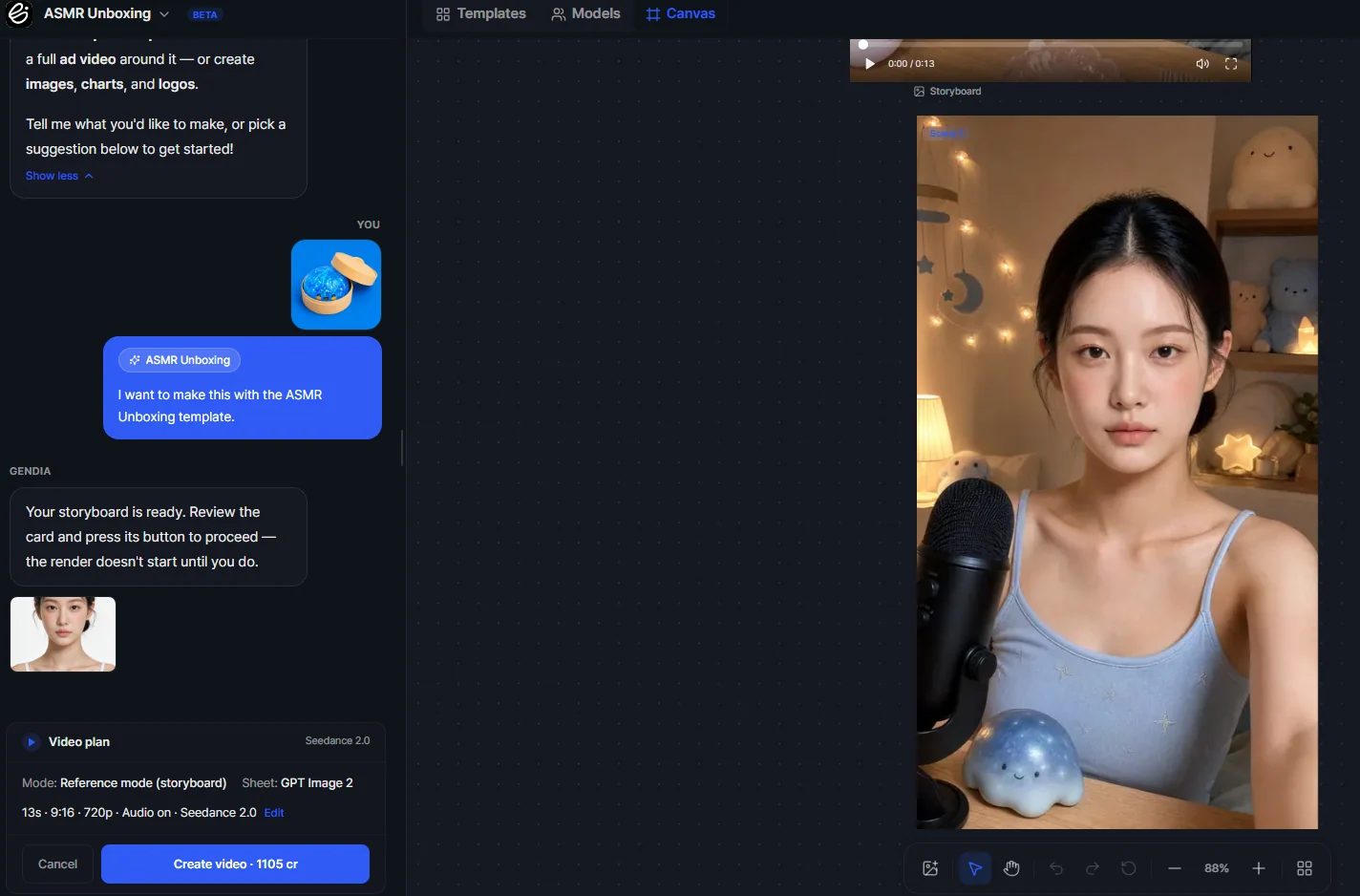
If you don't, you can tweak the prompt, or just type what you want to change straight into the canvas chat. Wait a few seconds and, tada, your UGC is ready!
Template 4: Posters
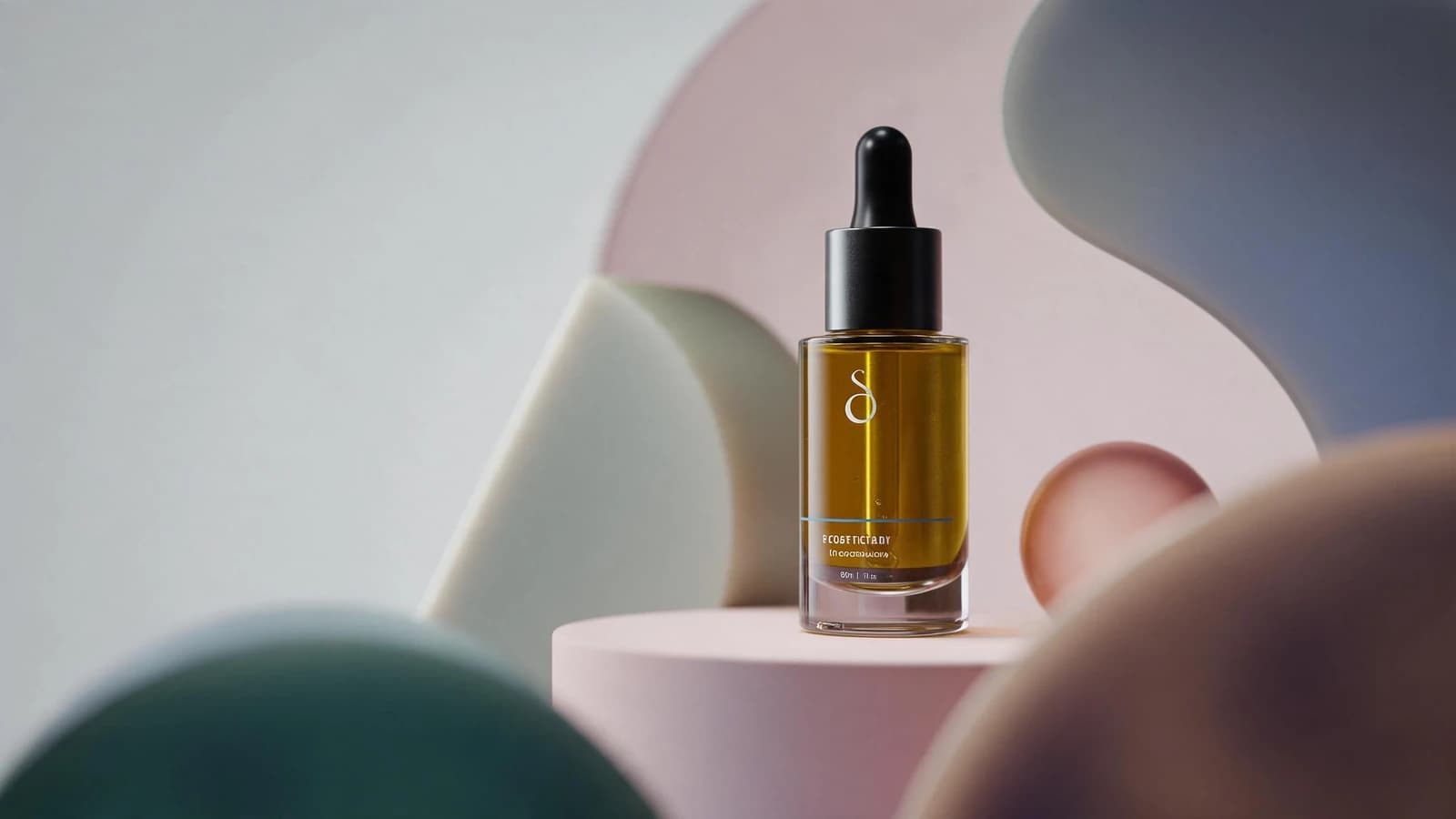
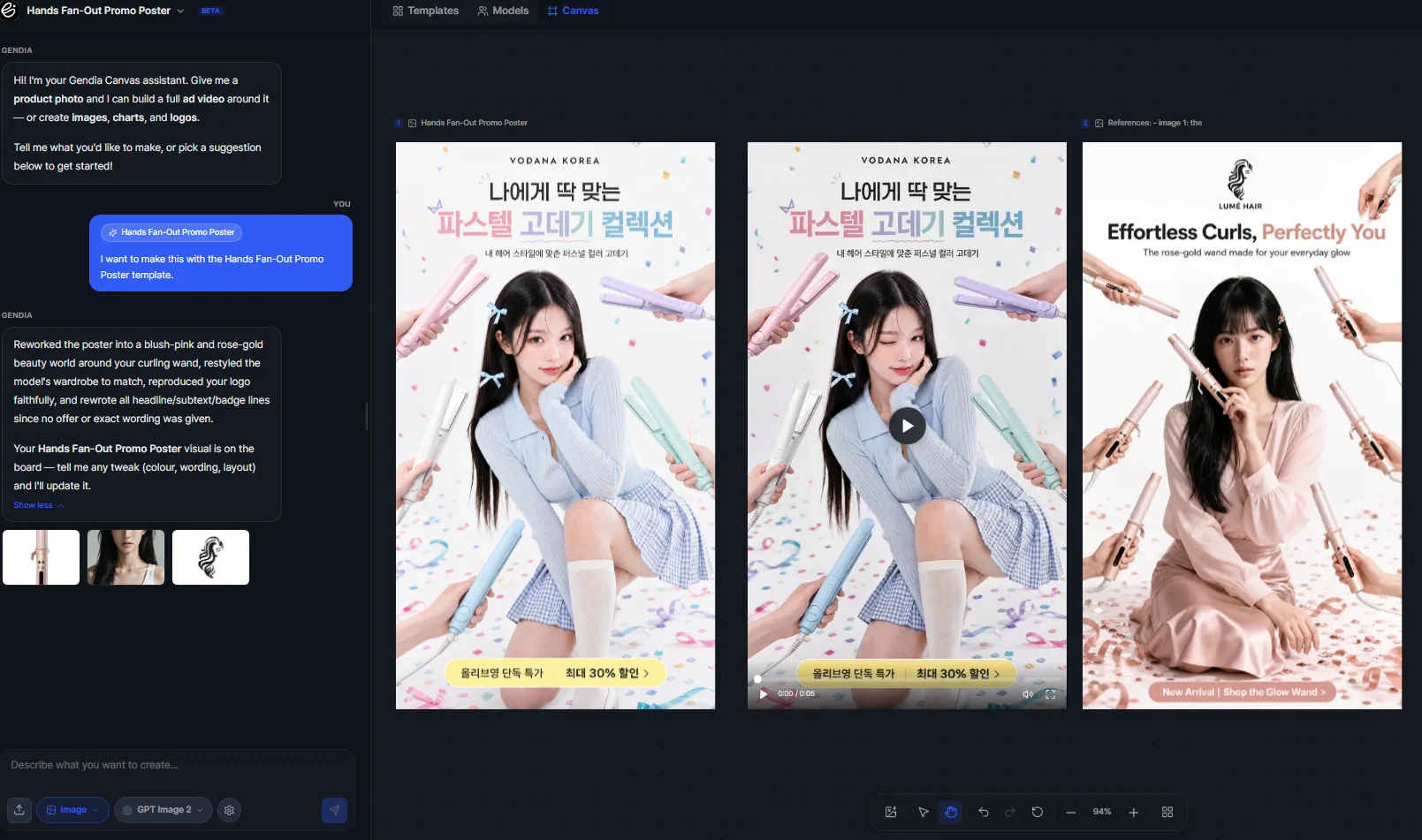
Designed, poster-style product visuals. This one has an extra output twist: you can get two results: a poster image and a poster video. Once your poster image is generated, you can simply keep it as an image, or take it a step further and turn it into a video. Types include product-only posters and framed model posters (e.g. Arched Frame Model Poster).
How to use it:
- Add product photos (required), drop or choose up to 3 files (PNG, JPG, or WebP).
- Choose an aspect ratio, 3:4, 1:1, 9:16, or 16:9.
- Choose a resolution, 1K (30 credits), 2K (55), or 4K (60).
- Add a model, only if your template uses one. Not every poster needs a model: some templates require just the product, while templates that show a model (like Arched Frame Model Poster) need both a product and a model. When it's needed, browse the catalogue or use your own photo.
- Add a logo (optional), upload one or pick from the gallery.
- Enter your brand name, shown on the final branding screen.
- Write the poster copy, headline word, colourway callout, and a pill-badge CTA. Your exact words render verbatim, and claims are never invented, so type precisely what you want on the poster.
- Add notes (optional).
- Hit generate, then keep your poster as an image, or continue to turn it into a video.
Poster with product only, without a model:
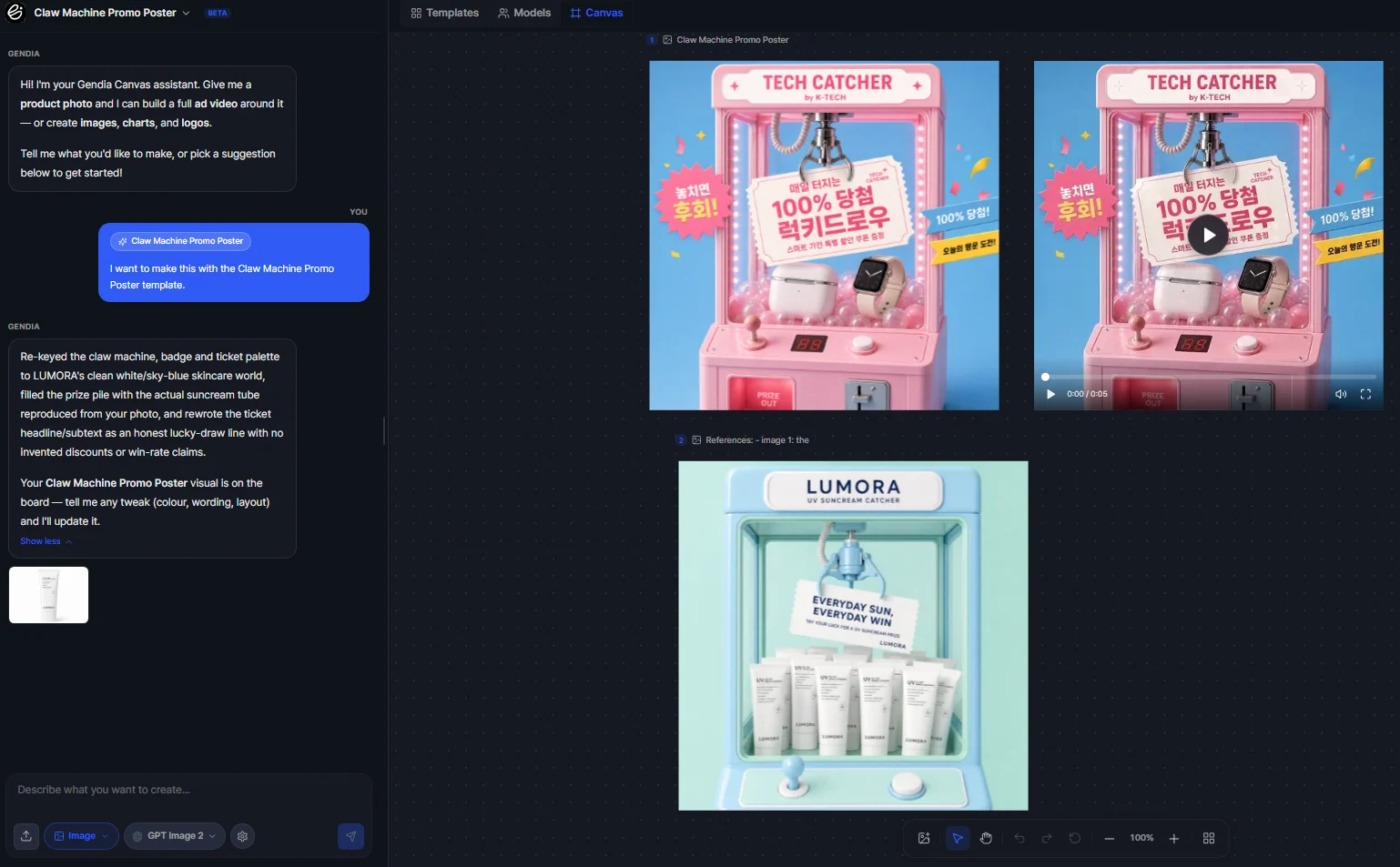
Poster with a product, a model, and a logo:
The whole point
One product photo and your choice of model, six different outputs: a TV commercial, a runway try-on, a UGC clip, a poster (image and video), a product detail page, and a PowerPoint presentation, plus the Models catalogue that ties them together. Each is built for a different place you'd post it, and none of it needs prompt-writing or a blank canvas.
Tips for better results
- Start with a clean, well-lit product photo, everything downstream inherits its quality.
- Match the aspect ratio to the platform, 9:16 for Reels/Shorts/TikTok, 16:9 for YouTube, 1:1 or 3:4 for feed posts and posters.
- Fill in the brand name and notes, small details like "warmer lighting" meaningfully change the result.
- For posters, type your copy exactly: the words render verbatim, so write the final headline and CTA you want.
- Run one photo through several templates so you've got content for every channel at once.
Try it yourself (free)
Open the Templates tab in Gendia Canvas: you get 250 free credits to start, no credit card needed. Upload one product photo, pick a template, and see how many finished ads you can get from a single image.
- #GendiaCanvas
- #CanvasTemplates
- #AITVCommercial
- #TVCF
- #VirtualTry-on
- #AIUGC
- #AIPoster
- #AIProductAd
- #AIMarketingForSmallBusiness
- #Gendia