Retouching a Portrait Without Making Someone Look Like Plastic
Gendia's AI photo retouch cleans up skin and surfaces in one pass for 20 credits. What it fixes, how far is too far, and why it belongs before the upscaler.
Retouching used to be the slowest, fiddliest job in the whole pipeline. Now it's 20 credits and one click, and the only real skill left is knowing when to stop.
What one pass fixes
You upload and it handles what it finds:
- Blemishes and temporary marks
- Uneven skin tone
- Shine and hotspots on foreheads and cheeks
- Dust, lint and smudges on product surfaces
- General surface noise that makes a shot look amateur
There's nothing to select and nothing to configure. That's the appeal and also the thing to watch: you don't get to dial down how far it goes, so you check the result rather than tune the input.
The failure mode: too clean
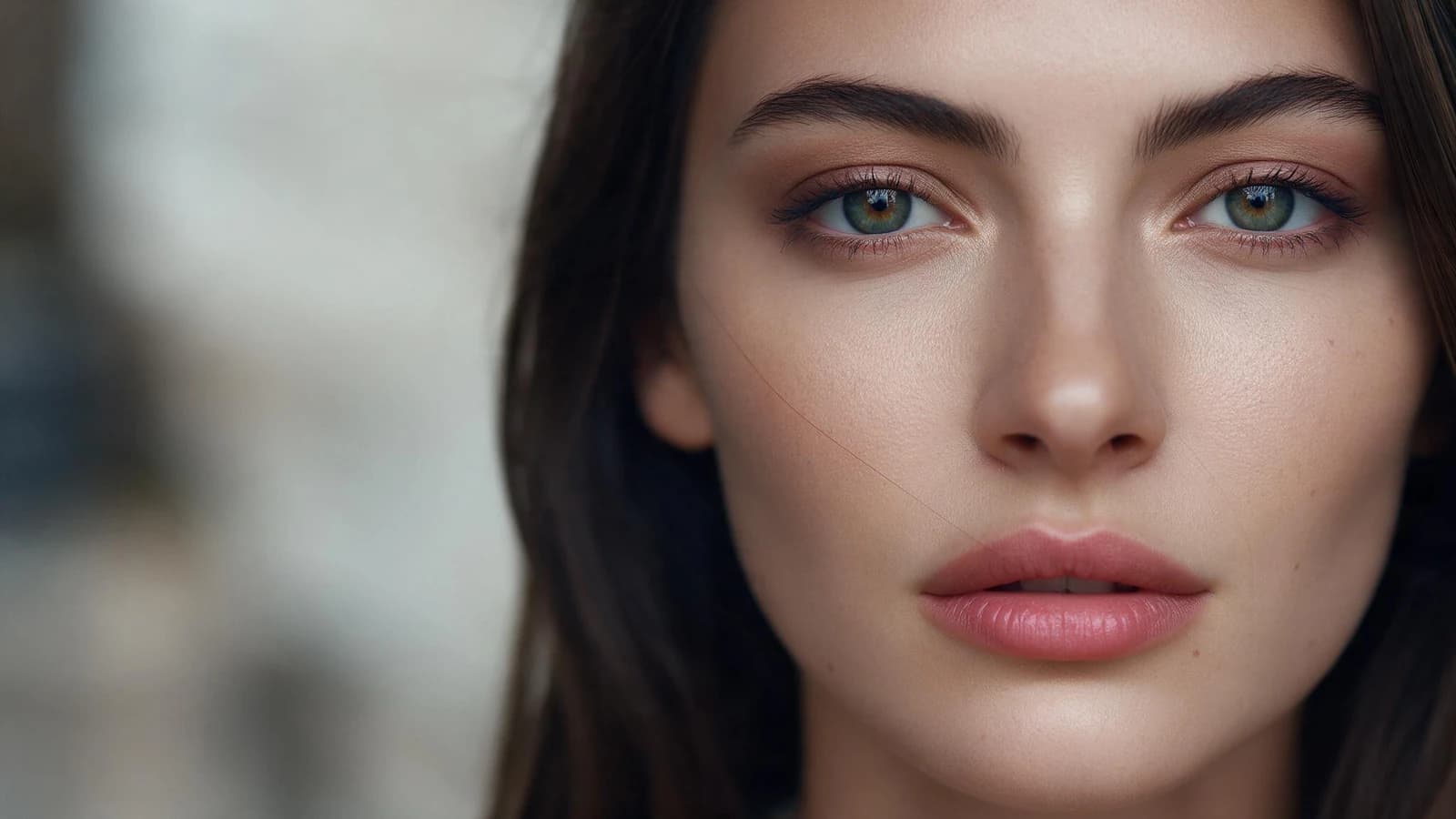
Every retouching tool ever made fails the same way. It removes so much that skin stops looking like skin.
Real skin has pores, fine lines, slight colour variation. Strip all of it and you get the plastic look, technically flawless, obviously fake, and oddly less flattering than the original.
So when you compare against the original, ask:
- Is there still texture? Zoom to 100% on a cheek or forehead. If it's a smooth gradient, it's gone too far.
- Do they still look like themselves? Retouching should remove temporary things: a spot, a shine. Permanent features are what make a face that person's face.
- Do surfaces still read as material? Leather should look like leather, not vinyl.
If it overshot, the honest answer is to use the original, or to run the source at a larger size where texture survives better.
Where it belongs
After generation and edits. Before upscaling.
- Generate or shoot
- Remove objects, change background
- Retouch
- Enhance, once, at the end
Retouching before an upscale means the upscaler enlarges clean surfaces. Doing it the other way round means paying to upscale blemishes and then removing them from a much larger file.
It isn't only for faces
Worth knowing, because the name suggests portraits:
- Product surfaces. Fingerprints on glass, dust on a dark box, lint on fabric. These are exactly the things that make a phone photo look like a phone photo.
- Flat lays, where crumbs and specks show up brutally under even light.
- Anything dark and glossy, where every mote of dust is visible.
For product work I run it almost as a matter of course, and it's usually the difference between "shot at home" and "shot properly".
When to use something else
- One specific thing to remove: a whole object, a logo, a person, use the object remover instead. Retouch works on surfaces, not on removing things.
- Old or damaged photographs, use photo restoration, which is built for tears, fading and age.
- The image is fundamentally soft, retouching won't sharpen it, and may make the softness more obvious by removing what texture remained.
Try it
Open AI photo retouch on a phone portrait, then put the two side by side at full size. Twenty credits, and the comparison teaches you where the line sits better than any description.
More in the photo tools.
- #AIPhotoRetouch
- #SkinRetouchingAI
- #PortraitRetouch
- #RemoveBlemishesPhoto
- #AIPhotoEditor
- #ProductPhotoCleanup
- #HeadshotRetouch
- #AIPhotoTools
- #ProfessionalPhotoEditingAI
- #Gendia